Smaller images. Fewer compromises.
The fastest route to a lighter image is often fewer pixels, not a harsher quality setting.
A real example you can inspect
We exported the same original landscape illustration through Luma using several settings. The source is a 733 KiB PNG at 1200 × 800. These results illustrate a workflow; photographs and screenshots can behave differently.

26.4 KiB · 96.4% smaller than the source
Inspect the actual export
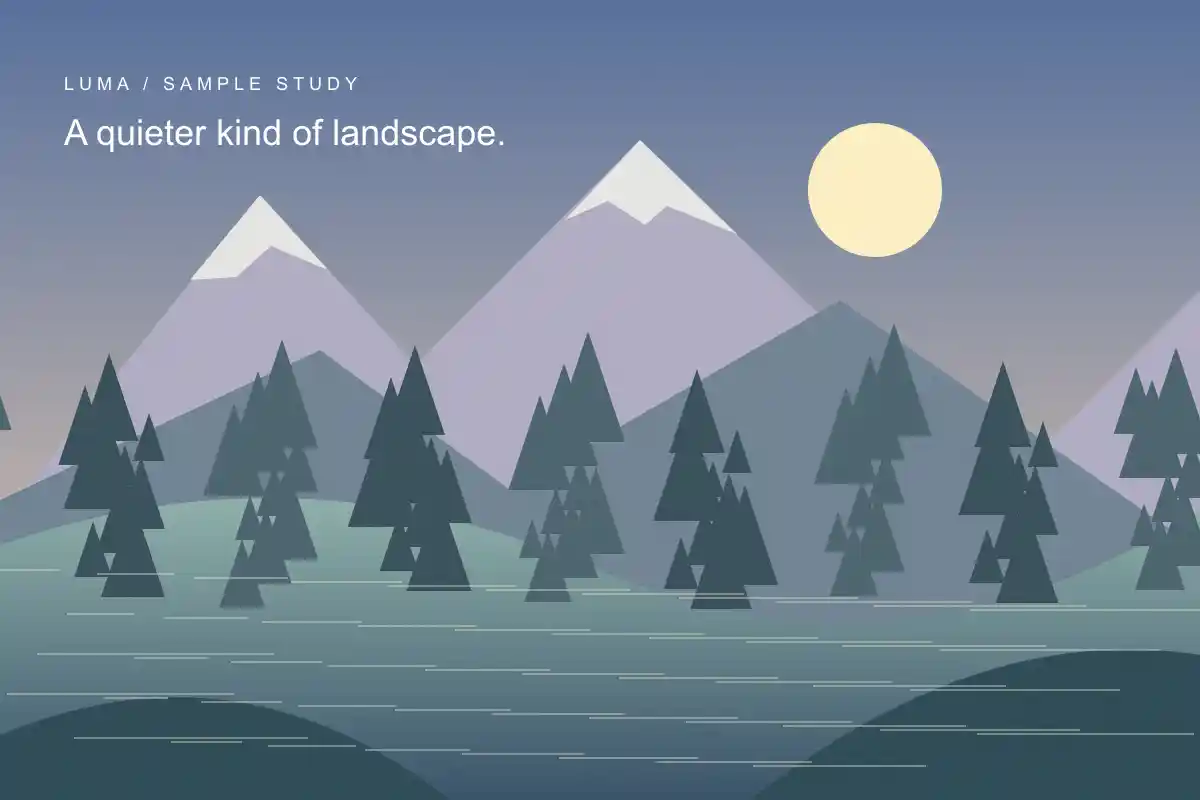
12.0 KiB · 98.4% smaller than the source
Inspect the actual export
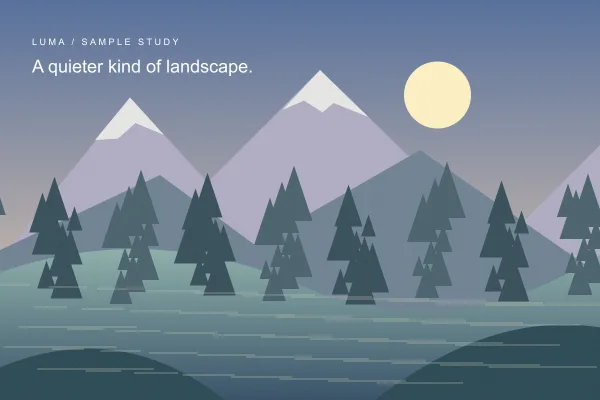
11.4 KiB · 98.4% smaller than the source
Inspect the actual export

15.8 KiB · 97.8% smaller than the source
Inspect the actual export
Generated locally in Edge 155.0.4283.62 on 2026-10-21, using the browser WebP encoder and the Ultra AVIF encoder. Quality numbers are not equivalent across encoders. Sizes are measured, not forecasts for your files. Compare detail at full size as well as normal viewing size. Download the original · Measurements and file hashes.

1. Find out what the destination needs
A website thumbnail may only need 600 pixels of width. A full-screen photo needs more. A submission form may specify a strict size in bytes. Start with that requirement rather than guessing. Leave some room for high-density displays, but do not send camera-resolution photos for a tiny preview.
2. Remove unnecessary pixels
Halving both width and height leaves one quarter of the pixels. File size does not follow that ratio exactly, but resizing often produces a larger saving than a small quality adjustment. Preserve the aspect ratio to avoid stretching people and objects. Resize an image.
3. Pick a sensible format
Try JPG or WebP for photographs. Keep PNG when crisp text or lossless pixels matter. If transparency is necessary, use PNG or WebP. Renaming an extension does not convert a format; you need to encode a new file.
4. Adjust quality in small steps
For a smaller download, try Ultra in the compressor. AVIF often saves space; Ultra also offers optimized JPG and WebP. It takes longer and accepts up to 12 megapixels. Check your destination before choosing AVIF, which Luma cannot yet re-import. PNG remains a Fast-mode option. A heavier encoder is not a guarantee of better visual quality.
Start near 80% for a lossy image, then compare. Quality numbers are encoder controls, not a universal measurement: 80% JPG is not equivalent to 80% WebP. Look closely at faces, fine lines, text, smooth skies and high-contrast edges. Lower the setting only while the result remains acceptable.
5. Keep the better result
Already-optimized images sometimes get bigger when re-encoded. Transparent images can also be larger than expected. Luma reports an increase instead of calling it a saving. If the new file is larger and you do not need a transformation, keep your original.
Keep an untouched original
Lossy exports are convenient for sharing, not a replacement for an archival original. Image processing can remove camera data and color profiles. Try the compressor and inspect the downloaded file before publishing it.